

Video Conferencing Equipment for Any Meeting Room
- November 14, 2025
- Posted by: Arti Sharma
- Category: Blogs
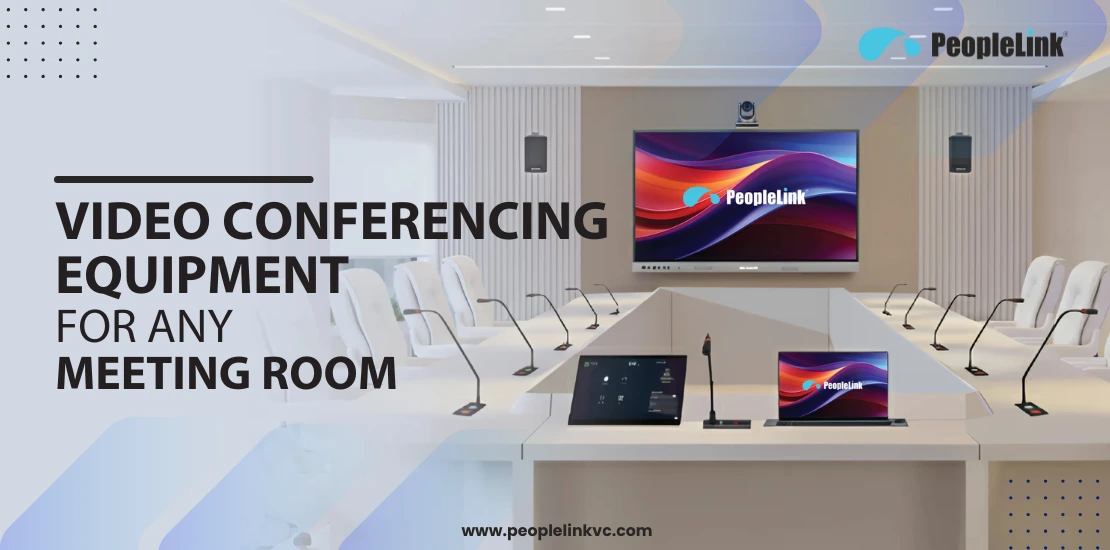
A video conferencing setup is the backbone of any modern meeting room. It allows teams to communicate face-to-face with clients, partners, and remote employees no matter where they are located. With the right combination of video conferencing equipment cameras, microphones, speakers, and displays your meeting room transforms into a fully equipped collaboration hub. These Video Conferencing Tools ensure crystal-clear audio, sharp video, seamless content sharing, and a professional experience for every participant.
Selecting the best video conferencing equipment is essential for productive discussions, confident communication, and maintaining a polished corporate image. When you set up video conferencing the right way, your meeting spaces become more efficient, more connected, and fully prepared for high-quality interactions at any time.
Know What Kind of Meeting Room Are You Equipping?
Before you look at a single camera or microphone, you must start with your space. This is the most important step.
The biggest mistake in any conference room setup is buying hardware that doesn’t match your room.A setup designed for a one-person office will fail in a large boardroom. The size, shape, and main purpose of your room will decide every other choice you make.
So, first, read the descriptions below and find the space that matches yours. In the next sections, we will show you the perfect “kit” of equipment for that exact room.
The Home Office
This is the setup for a single person. This could be a remote employee, a manager, or a solo professional working from a home desk.
- What it’s for: One person joining group meetings or talking with clients from their personal workspace.
- The Main Challenge: You need to look and sound more professional and clearer than you would with a basic, built-in laptop camera.
- What to focus on: A simple setup that upgrades your personal video and audio to be reliable and high-quality every time.
The Huddle Room (2-4 People)
This is a small, informal room. It’s designed for small teams to have quick, collaborative meetings.
- What it’s for: Spontaneous team check-ins, creative brainstorming, and collaborative work on a single project.
- The Main Challenge: The room is small, and people sit close to the display. The system needs to capture everyone without being complex.
- What to focus on: A simple, all-in-one device. You need a camera with a very wide field of view (FOV) so it can see everyone at the small table.
The Conference Room (5-12 People)
This is the classic, all-purpose meeting room. Most offices have several conference rooms like this.
- What it’s for: Any type of meeting: team updates, client presentations, or hybrid meetings with both in-person and remote staff.
- The Main Challenge: Flexibility and ease of use. The system must work well whether there are 5 people or 12. It must be powerful enough to pick up voices from the far end of the table. Most importantly, it must be so simple that any employee can start a meeting with almost zero effort.
- What to focus on: A system that provides crystal-clear audio for the entire table. You need a solution that is powerful but not complicated.
The Boardroom (12+ People)
This is a formal, high-stakes space. It’s used for executive meetings, high-value client pitches, and critical company decisions.
- What it’s for: Important, formal meetings where quality and reliability are the top priorities.
- The Main Challenge: Performance. There is zero tolerance for technical problems. The audio must be perfect, capturing every person at a long table. The video must be sharp and professional, often focusing on the person speaking.
- What to focus on: A high-end, premium system. This often means advanced microphones (like ceiling or array mics) and smart cameras that can zoom in on the active speaker.
The Training Room (One-to-Many)
This room has a different purpose from all the others. It is not for a group discussion. It is for one person presenting to many people, some of whom are remote.
- What it’s for: Training sessions, company all-hands, product demos, or university lectures.
- The Main Challenge: Capturing the presenter and their content (like a whiteboard or presentation) simultaneously The presenter may be walking around, so the camera and microphone must be able to “follow” them.
- What to focus on: A system designed for speaker tracking. This includes a camera that can follow the presenter and a microphone (like a lapel or ceiling mic) that captures their voice clearly, no matter where they move.
The 5 Key Parts of Any Video Conferencing Setup
Now that you have identified your room, let’s look at what goes inside it.
This is the easy part. Every great video meeting setup, from a home office to a large boardroom, is made of the same five key parts. The only difference is the size, power, and features of each part.
Here is a simple breakdown of the five tools you will be choosing from.
- Meeting Room Cameras: This is the tool that captures all the visual information in your room. Its job is to send a clear image of your team to the other people in the meeting.
- Conference Microphones: This is the tool that captures the voices of everyone in your room. This is arguably the most important part of your setup. If people cannot hear you clearly, the meeting fails.
- Speakers: If the microphone is for sending sound, the speakers are for receiving it. This tool’s job is to make the remote participants sound clear, loud, and natural, as if they were sitting in the room with you.
- The Display: This is the screen you look at your window to the other participants and their shared content.
- The Control System: This is the most important part of your setup. The control system is the central “brain” that connects your camera, microphone, speakers, and display. It’s what makes them work together as one simple system.
Video Conferencing Equipment #1: Meeting Room Cameras
Your camera is your main tool for non-verbal communication. It’s what captures your face, expressions, and environment so everyone in the meeting can see you.
Your Main Camera Options:
- Professional Webcams: A good webcam for video conferencing is a major upgrade from your laptop’s built-in camera, best for solo users.
- All-in-One: A single device that combines the camera, microphone, and speaker.
- PTZ (Pan-Tilt-Zoom) Cameras: Can mechanically move left-right (pan), up-down (tilt), and zoom in on a person.
- AI-Powered Cameras: Act like a director, automatically framing the group or zooming in on the active speaker.
What to Look For:
You will see many technical terms. Here are the three that matter most:
A) Resolution: This is how clear the picture is.
- 720p: The old standard; can look blurry.
- 1080p (Full HD): The sweet spot. It provides a sharp, clear image and is perfect for most businesses.
- 4K: Ultra-sharp, but often more than you need and requires a fast internet connection.
B) Field of View (FOV): This is how much the camera can see (a wide vs. narrow view).
- Narrow View (60-70°): Only good for one person (like a laptop camera).
- Medium View (90°): A good all-around choice for 1-2 people.
- Wide View (120° or more): This is what you need for a meeting room to capture everyone at a table.
C) Megapixels (MP): These are the tiny dots that make up the digital image. A higher MP count captures more detail, which helps create a sharper picture. You don’t need to obsess over this number, but it helps.
Video Conferencing Equipment #2: Conference Microphone
For any audio and video conferencing setup, audio is often more important than video. If people can’t hear you clearly, the meeting, whether it’s a full video call or a simple tele conference simply can’t happen.
Your Main Microphone Options:
- Built-in Mics: The basic microphones inside your laptop or webcams.
- Tabletop Speakerphones: The most common solution for meeting rooms. This is an all-in-one device that combines a microphone and speaker into a unit.
- Lapel Mics: Small microphones that clip onto your shirt, designed to capture just your voice. Good for presenters.
- Array Microphones: An advanced system with multiple mics built-in. They work together to “focus” on the person talking and ignore other noise.
- Ceiling Microphones: Microphones that are installed in the ceiling. This keeps the table clear and can cover the entire room.
What to Look For:
When shopping, focus on these three features:
A) Pickup Range: This is simply how far away the microphone can clearly hear someone. You must match this range to the size of your room.
B) Pickup Pattern (Direction): This means where the mic is “listening”.
- Cardioid: Picks up sound from the front. This is best for one person (like a solo USB mic).
- Omni-directional: Listens 360 degrees all around it. This is best for a group around a table.
C) Echo & Noise Canceling: This is a must-have feature.
- Noise-canceling filters out background sounds like an air conditioner or keyboard tapping.
- Echo-canceling stops the awful feedback sound that happens when the mic picks up audio from your own speakers.
Video Conferencing Equipment #3: Speakers
If the microphone is for sending sound, the speakers are for receiving it. Their job is simple: to make sure you can hear everyone else in the tele conference clearly.
Your Main Speaker Options:
- Built-in Speakers: These are the basic speakers already inside your laptop or computer monitor.
- Headsets & headphones: This is a private speaker and mic combo. This category includes everything from simple earbuds to full headsets & headphones that you wear for the best noise blocking.
- Speakerphones: This all-in-one device combines your speaker and microphone into one unit.
- Video Soundbars: These are long, thin speaker bars that mount above or below a TV and provide strong, clear audio for a room.
- Dedicated Room Speakers: These are larger, separate speakers (or speakers installed in the ceiling) designed to fill a big conference room with sound.
What to look for:
For speakers, you only need to think about three things.
- A) Room Size: The speaker must be powerful enough to fill your room with clear sound.
- B) Voice Clarity: You are listening to speech, not music. You need speakers “tuned for voice” so words sound crisp.
- C) Echo Prevention: The speaker must be built to prevent its own sound from being picked up by the microphone, which causes echo
Video Conferencing Equipment #4: Displays
This is simply the screen you use to see the other people in your meeting, along with any presentations, documents, or videos they share.
Your Main Display Options:
- Built-in Laptop Screen: This is the screen that’s part of your laptop, best for solo use on the go.
- External Monitor: This is a separate desktop screen you plug into your computer, great for a home office.
- Television (TV): A standard flat-screen TV is the most common and cost-effective display for meeting rooms.
- Interactive Display: This is a large touchscreen, often called digital whiteboards. It’s like a giant tablet for the wall that lets you write and draw on the screen.
- Projector: A device that beams the video image onto a large wall or a pull-down screen.
What to look for:
When you shop for a display, you only need to think about three things.
A) Screen Size: How is about how big is the screen? The right size depends on your room. If people are sitting far away, they need a bigger screen to see clearly. A screen that is too small for the room makes meetings difficult.
B) Resolution: We learned about this with cameras. It’s how clear and sharp the picture is.
- 1080p (Full HD): This is the minimum for a good meeting room. It works well for smaller monitors and TVs.
- 4K (Ultra HD): This is the best choice for any large TV or display (55 inches or bigger). On a big screen, 4K keeps the image looking sharp and detailed, not soft or blurry.
C) Connections : This is simply how you plug your computer into the screen. The most common and easiest connection is an HDMI port. Make sure the display you buy has at least one HDMI port that is easy to access.
Video Conferencing Equipment #5: Control & Integration
The control system is the “brain” that connects your camera, mic, speaker, and display, making them work together as one simple system. This is what turns separate parts into true Video collaboration systems.
Your Main Control Options:
- Bring Your Own Device (BYOD): You use your own laptop to run the meeting by plugging it into the room’s gear, often with a single cable.
- Dedicated Room System: The room has its own built-in computer and a touch-screen controller for one-touch joining.
- All-in-One Controller: A touch-screen remote that often comes with a video soundbar.
- Wireless Sharing: Lets you share your screen to the display without cables, often using a small button (dongle) or app.
What to Look For:
- A) Ease of Use: This is the #1 priority. If it’s complicated to set up video conferencing for each meeting, people won’t use the room.
- B) Software Compatibility: Does it work with your company’s software (like inMeet, Zoom, Teams, or Google Meet)?
- C) The “One-Cable” Experience: For BYOD setups, the goal is a single cable (like USB-C) that connects your laptop to the camera, mic, speaker, and display all at once.
Final Recommended Equipment Solutions for Any Meeting Room
The easiest way to get your setup right is to choose a pre-designed “kit” or solution built for your specific room size. Here are the most common and reliable equipment solutions for every type of space we recommend:
1. The Home Office (Solo Worker)
- Camera: An external 1080p webcam.
- Audio (Mic/Speaker): A noise-canceling headset or an external USB microphone.
- Display: Your laptop screen or a separate external monitor.
- Control: Your laptop is all you need.
2. The Huddle Room (2-4 People)
- All-in-One: An All-in-One Video Bar. This is the simplest and best solution. It combines your camera, microphone, and speaker in one device.
- Display: A 55 to 65-inch 4K TV.
- Control: A single USB cable on the table that lets anyone plug in their laptop (this is called a “BYOD” or Bring Your Own Device setup).
3. The Conference Room (5-12 People)
- All-in-One: A premium Video Bar built for medium rooms. It has a more powerful camera and microphones to cover the longer table.
- Display: A 75-inch or larger 4K TV.
- Control: A Dedicated Room System. This is a touch-screen controller that stays on the table and lets anyone start a meeting with a single tap.
4. The Boardroom (12+ People)
- Camera: A PTZ (Pan-Tilt-Zoom) camera that can zoom in on the person speaking.
- Audio: A modular system. This means separate microphones (either multiple units on the table or mics built into the ceiling) and separate room speakers.
- Display: A very large 85-inch+ 4K display, or two displays.
- Control: A Dedicated Room System with a premium touch-screen controller.
5. The Training Room (One-to-Many)
- Camera: A speaker-tracking camera that automatically follows the presenter as they move.
- Audio: A wireless lapel (clip-on) microphone for the presenter, plus separate room speakers for the audience.
- Display: An Interactive Display (digital whiteboard) so the presenter can write or draw for both the in-room and remote audience.
- Control: A dedicated system controlled from a touch panel.
Let's Design Your Perfect Room, Together.
You now have a clear plan that is better than 99% of the meeting room setups out there. But we know that while this guide provides a complete framework, every room has its own unique quirks a strange window placement, an unusual table shape, or a tricky acoustic challenge. Getting a second opinion from an expert can be the difference between a great system and a perfect one.
Ready to get an expert eye on the plan you’ve built? Explore our meeting room solutions everything from work from home setup to large conference room setup, to discover which one is the perfect solution for your unique space.