

The Ultimate Buyer’s Guide: Picking the Right Interactive Display (2026)
- January 28, 2026
- Posted by: Mayank Ashar
- Categories: AV-Tech, Blogs
Quick answer: An interactive flat panel is a large touchscreen display for classrooms and meeting rooms that replaces the projector and whiteboard with one digital surface for writing, presenting, and video collaboration. It matters because it removes calibration, dim-room limits, and separate hardware. PeopleLink builds interactive panels and boards that integrate with its cameras, audio, and room software.
By now, you probably know that a standard TV or projector isn’t cutting it for your team. But walking into the world of Interactive Flat Panels (IFP) feels like a lot. Tech specs change every few months, and there are dozens of brands making big promises. If you choose wrong, you end up with a high-priced whiteboard that sits in the corner collecting dust. This guide skips the fluff. We’re breaking down the features that actually matter this year-from 4K clarity to the “pen-on-paper” feel of Zero Bonding-so you can buy with confidence.
Why Interactive Displays are Winning
The days of one-way presentations are over. Projectors and “dumb” TVs worked fine when one person spoke and everyone else watched. But today’s work is collaborative.
- TVs are too limited: They’re great for watching, but useless for working. You can’t touch them, draw on them, or use them to run your meeting apps.
- Projectors are a hassle: They look washed out if the sun is up, they need expensive bulb swaps, and they don’t have the “brain” to run all major video conferencing platforms natively.
A modern interactive display is different. It’s essentially a giant, 4K tablet that lives on your wall. It merges a computer, a screen, and a whiteboard into one smart hub.
Comparing display options? See PeopleLink’s interactive displays and interactive flat panels.
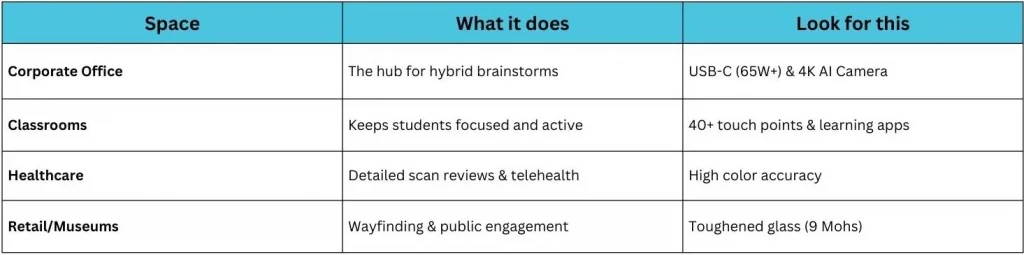
Match the Tech to Your Space
Your 5-Point Quality Checklist
If you want a display that still feels fast and useful five years from now, check these five boxes:
1. Visuals: 4K UHD and True Anti-Glare
Don’t settle for anything less than 4K UHD (3840 x 2160). But resolution isn’t everything. If your office has big windows, you need at least 400 nits of brightness and etched anti-glare glass. Etched glass is better than a cheap coating because it kills reflections without making your text look blurry.
2. The Feel: Zero Bonding Technology
If you’ve ever written on a digital board where the “ink” seems to float an inch behind your pen, that’s an air gap. Zero Bonding removes that gap. It makes writing feel instant and precise-just like a real marker on a real board.
3. Ports: The One-Cable Setup
Messy cables kill productivity. Look for a Full-Function USB-C port. It’s the modern standard. You plug in one cable, and your laptop shares video, audio, and touch control-all while the display charges your battery.
4. The Brain: Android 13/14 and the OPS Slot
Your display should be smart on its own but flexible for the future.
- Built-in Android: Perfect for fast whiteboarding or browsing.
- OPS Slot: This is a “must.” It’s a slot in the back where you can slide in a Windows PC module. It gives you a full desktop experience without wires hanging everywhere.
5. Toughness and Health
In shared rooms, durability matters. Demand 4mm tempered glass. We also suggest looking for antimicrobial coatings. It’s a small detail that helps keep shared high-touch surfaces a bit cleaner.
Why PeopleLink R-Series Leads the Pack
We don’t just build hardware; we build tools people actually enjoy using. The R-Series is our answer to the over-complicated IFP market.
- No “Premium” Gaps: We include Zero Bonding on all models because we think every user deserves a great writing experience.
- Choose Your Model: Get the ‘S’ for standard use, the ‘C’ if you need a built-in 13MP camera for video calls, or the ‘E’ for power users who need extra memory.
- Software Without the Bill: You shouldn’t have to pay a monthly fee just to use your whiteboard. Our core software is included for the life of the product.
FAQs
Is a 75-inch or 86-inch display better for a standard meeting room?
For a room seating 8 to 12 people, a 75-inch is usually the sweet spot. For larger boardrooms or spaces where people sit further than 15 feet away, the 86-inch is recommended for readability.
Do I need a separate PC to run the display?
No. Most modern displays like the PeopleLink R-Series have a built-in Android OS. However, adding an OPS Windows module is highly recommended if your team relies heavily on the full desktop versions of Excel, specialized CAD software, or proprietary Windows apps.
Can multiple people write on it at the same time?
Our panels support up to 40 points of touch. You can have three or four people at the board brainstorming, drawing, and moving objects around simultaneously without the sensor getting confused or ghosting.

| Display option | Interactive flat panel | Projector + whiteboard |
|---|---|---|
| Brightness in lit rooms | High, consistent | Dims, needs low light |
| Setup | Plug in, no calibration | Alignment and bulb upkeep |
| Digital content and saving | Built in | Not supported |
| Touch and annotation | Native multi-touch | Manual marker only |
Ready to upgrade your rooms?
See PeopleLink’s AV and Unified Communications solutions in action, or get pricing built around your needs.